Quick answer
With TabTools installed, right-click a tab from the website you want to close in Chrome’s tab bar and choose Close site tabs. This closes matching tabs across your normal browser windows, including matching active and pinned tabs.
Close a website’s tabs in Chrome
The tab’s context menu gives you a shortcut directly from Chrome’s tab bar.
- Install TabTools from the Chrome Web Store.
- Find a tab from the website you want to close, such as the YouTube homepage or a search results page.
- Right-click that tab in Chrome’s tab bar.
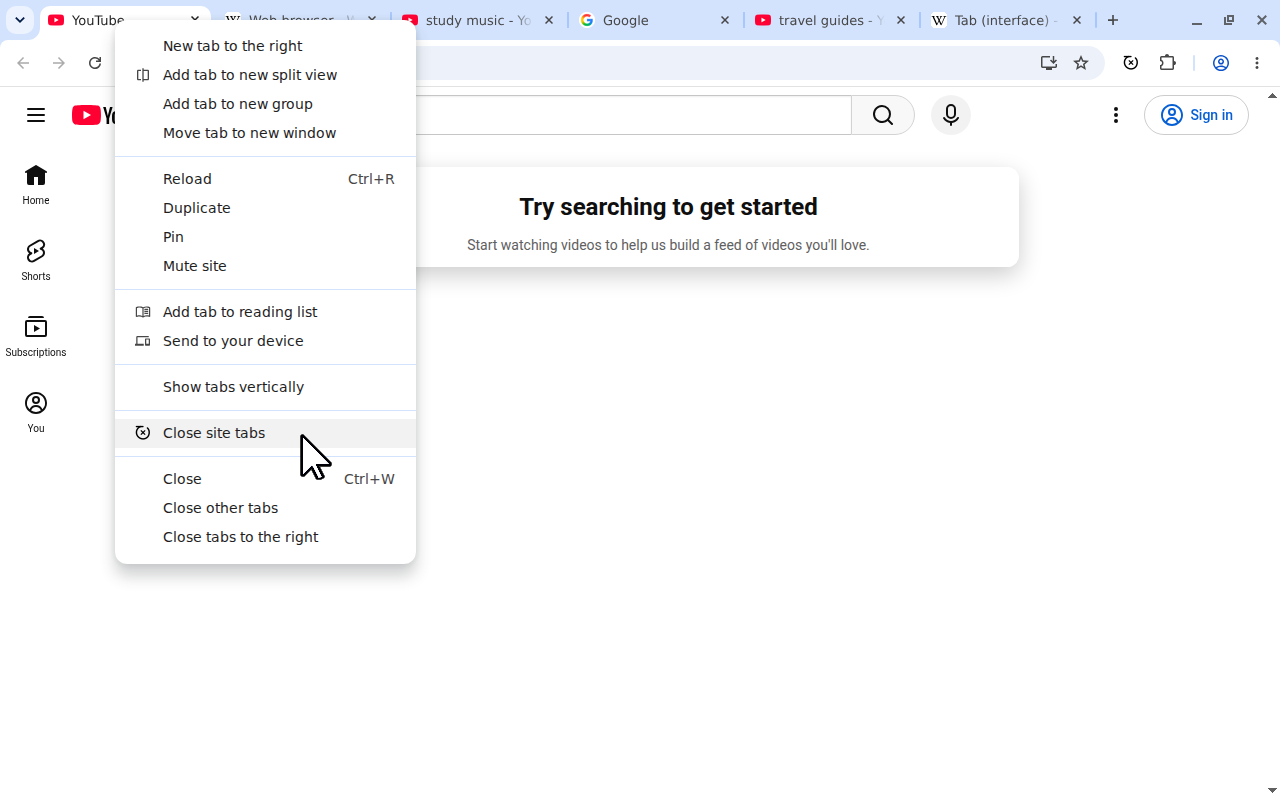
- Choose Close site tabs. Tabs with the same website hostname close together.
 View full size (opens in a new tab)
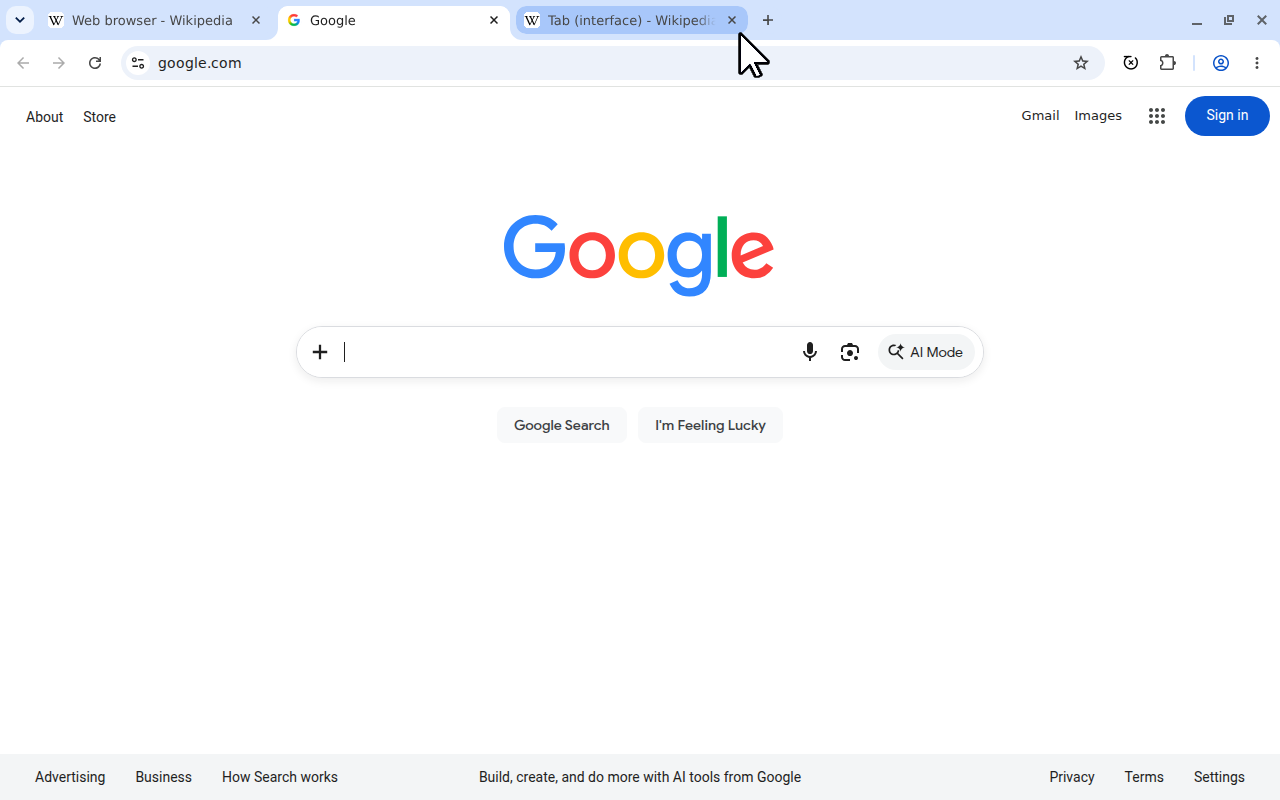
In this example, three pages on youtube.com close while two Wikipedia tabs and Google stay open. You do not need to collect the YouTube tabs beside one another first.
 View full size (opens in a new tab)
If Close site tabs is not available in a tab’s menu, open that tab and right-click inside the webpage instead, or use the TabTools popup below.
This is useful when you have finished with the whole website. If you still need a particular page from it, keep that in mind before using the command: it includes the tab you right-click.
Close a different website from the popup
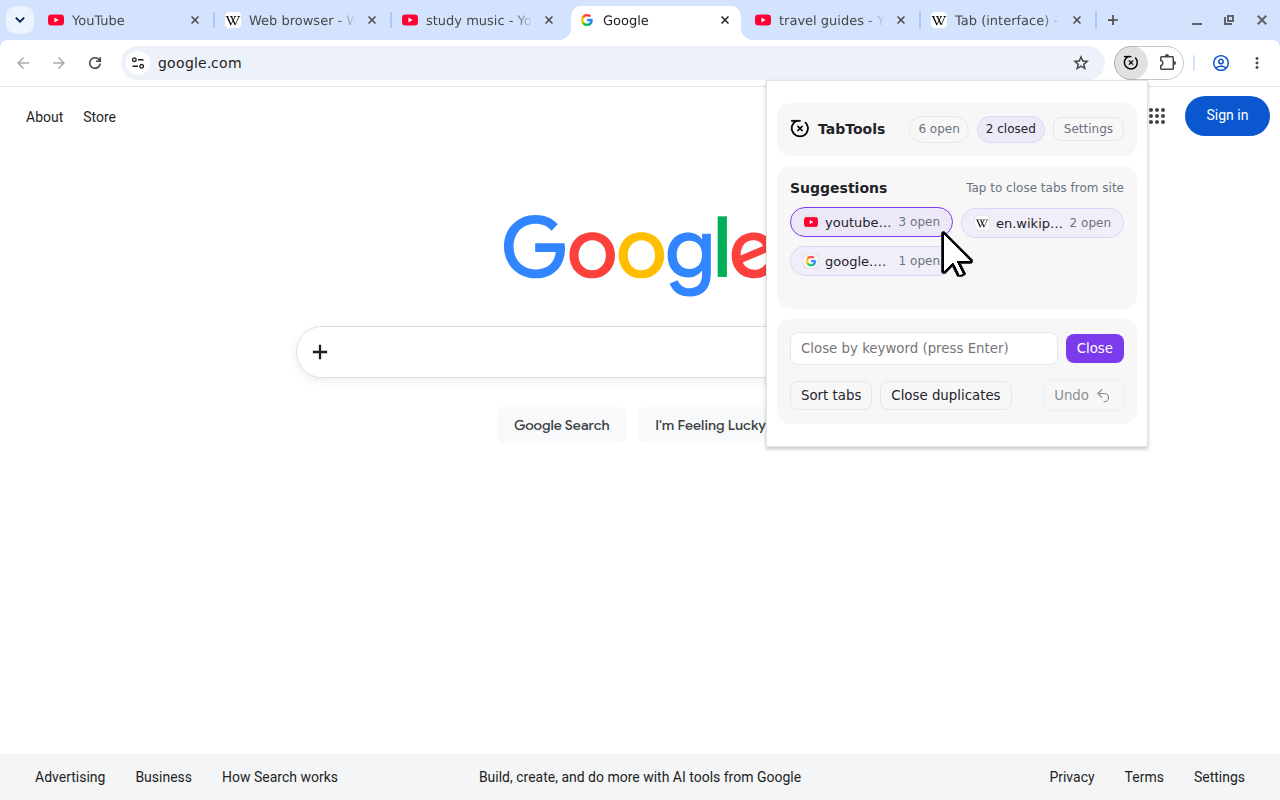
You can also choose a website without switching to one of its pages.
- Open TabTools from your browser’s extensions menu or toolbar.
- Find the website among the suggestions under Tap to close tabs from site. Each suggestion shows its open-tab count.
- Select the website to close its matching tabs.
 View full size (opens in a new tab)
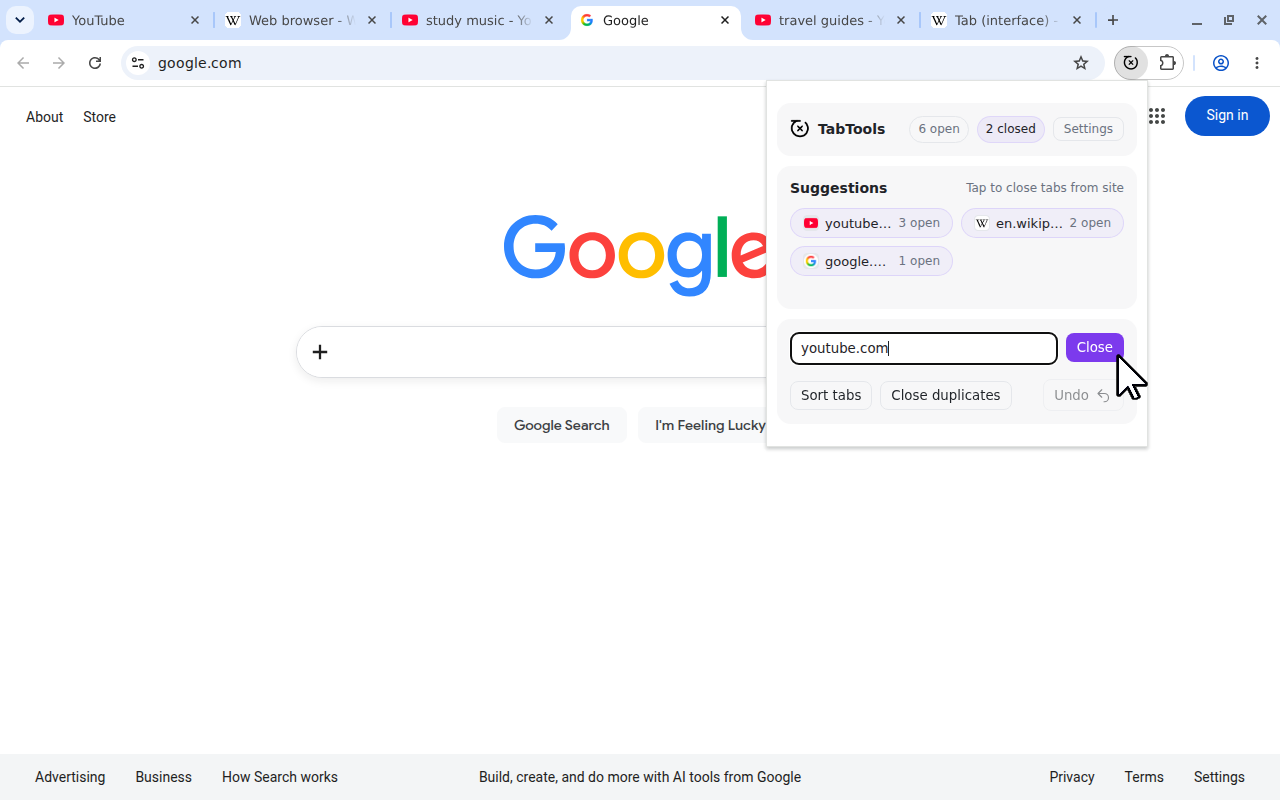
You can also enter a hostname directly, which is useful if the website is not shown in Suggestions. Enter its hostname, such as youtube.com, in Close by keyword (press Enter), then press Enter or click Close. Enter the hostname alone, without https:// or a page path.
 View full size (opens in a new tab)
A plain keyword such as shopping works differently: it searches tab titles and URLs. Use the exact hostname when your intention is to close one specific website.
Which tabs count as the same website?
Site closing matches the hostname, ignoring a leading www.. Different pages on that hostname match even when their paths or query parameters differ.
| When closing example.com | Result |
|---|---|
example.com/article-one | Closes |
www.example.com/article-two | Closes |
shop.example.com/product | Stays open: a different subdomain |
another-site.com/example | Stays open |
The command covers normal windows in the browser where you run it. Matching pinned tabs and active tabs are included; private or incognito tabs are excluded. It does not reach tabs in another browser application.
Close matching tabs manually in Chrome
For a small number of tabs, Chrome’s Tab Search provides a manual route.
- Open Tab Search with Ctrl + Shift + A on Windows or Linux, or Command + Shift + A on Mac.
- Search for the website’s name or hostname.
- Review the open-tab results and use the close control for each page you want to remove.
This lets you keep selected pages from the website. It also means reviewing and closing the matches individually. Google documents the search and close controls in its Chrome tabs guide.
Use the same workflow in Firefox and Edge
Firefox
Install TabTools for Firefox, then right-click a tab from the target website in the tab bar and choose Close site tabs. You can also right-click inside its webpage or choose a website from the popup’s suggestions.
Microsoft Edge
Install TabTools for Edge, then right-click a tab from the target website and choose Close site tabs if your Edge version shows it in the tab’s menu. Otherwise, open the tab and right-click inside the webpage, or enter the hostname in the popup. The matching rules and cross-window scope are the same as described above.
Reopen tabs or choose a smaller cleanup
After closing tabs through the popup, its Undo button can reopen the tabs from your latest popup cleanup while that popup remains open. The right-click Close site tabs action is not recorded by the popup’s Undo button.
After a context-menu close, look in your browser’s recently closed tabs or history. Reopening a URL should not be treated as restoring unsaved form input or every detail of a page’s previous state.
If your goal is to retain one copy of each page, follow the guide to closing duplicate tabs. To keep all your pages and make them easier to scan, sort tabs by website instead.