
Quick answer
Open TabTools and click Close duplicates to remove repeated unpinned pages across your normal browser windows. Firefox also has built-in commands for closing duplicates of one tab or cleaning up duplicate tabs from its tab overview menu.
Choose a method for your browser
| Browser | Method covered here |
|---|---|
| Chrome | Open TabTools and select Close duplicates. |
| Firefox | Use its built-in duplicate commands, or select Close duplicates in TabTools. |
| Microsoft Edge | Open TabTools and select Close duplicates. |
Before a bulk cleanup, finish any unsaved work in repeated pages. Two tabs can show the same URL while holding different text you have entered into a form.
What counts as a duplicate tab?
Duplicate tabs are repeated copies of a page. Three copies of the YouTube homepage are duplicates; the homepage and two different YouTube search results are different pages from the same website.
TabTools compares page URLs after removing the fragment: the part beginning with #. Paths and query parameters remain part of the comparison.
| Example URLs | TabTools treatment |
|---|---|
example.com/guide opened twice | Duplicates |
example.com/guide#intro and example.com/guide#steps | Duplicates: fragments are ignored |
example.com/guide and example.com/contact | Different pages |
example.com/search?q=tabs and example.com/search?q=bookmarks | Different query parameters; both stay |
Some web apps use fragments to identify different screens, so those screens can count as duplicates. Conversely, tracking parameters can make otherwise similar pages count as different URLs. The command compares addresses; it does not inspect page content to decide whether two pages mean the same thing.
Close duplicate tabs in Chrome or Edge
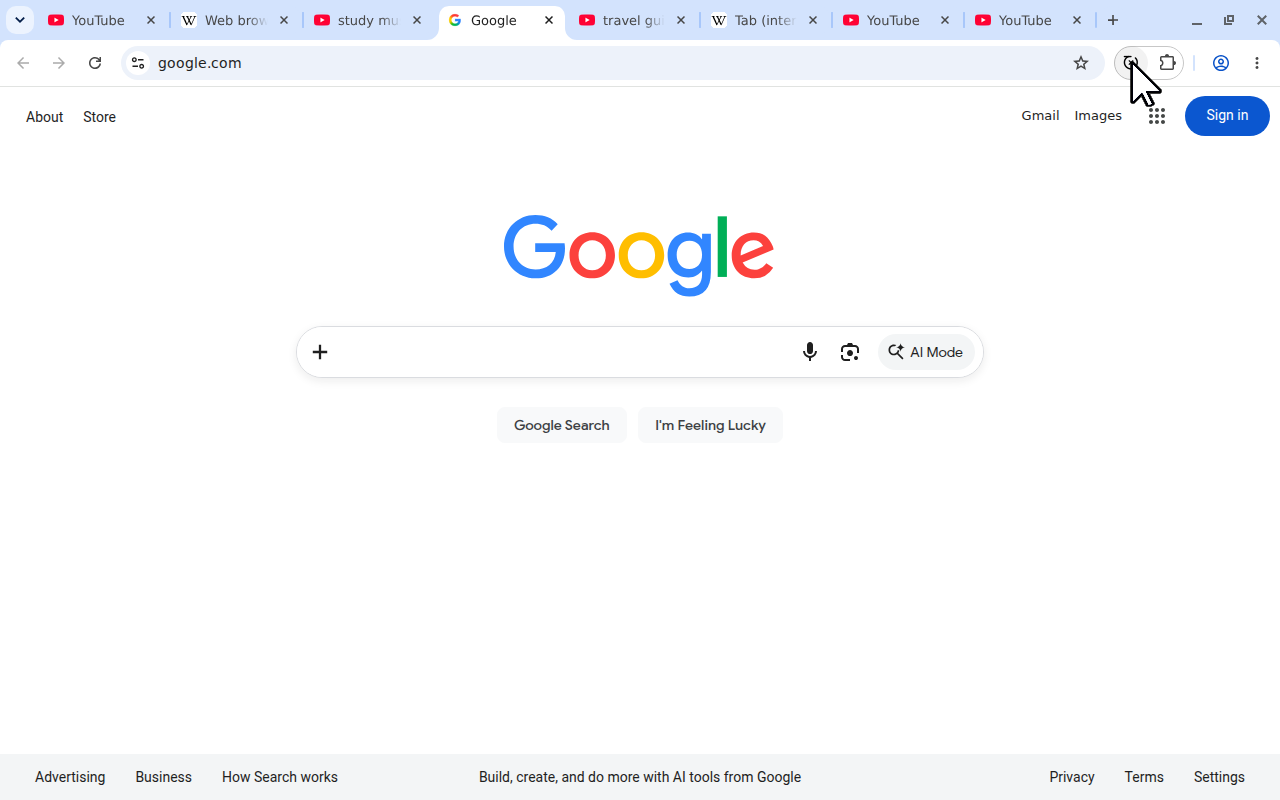
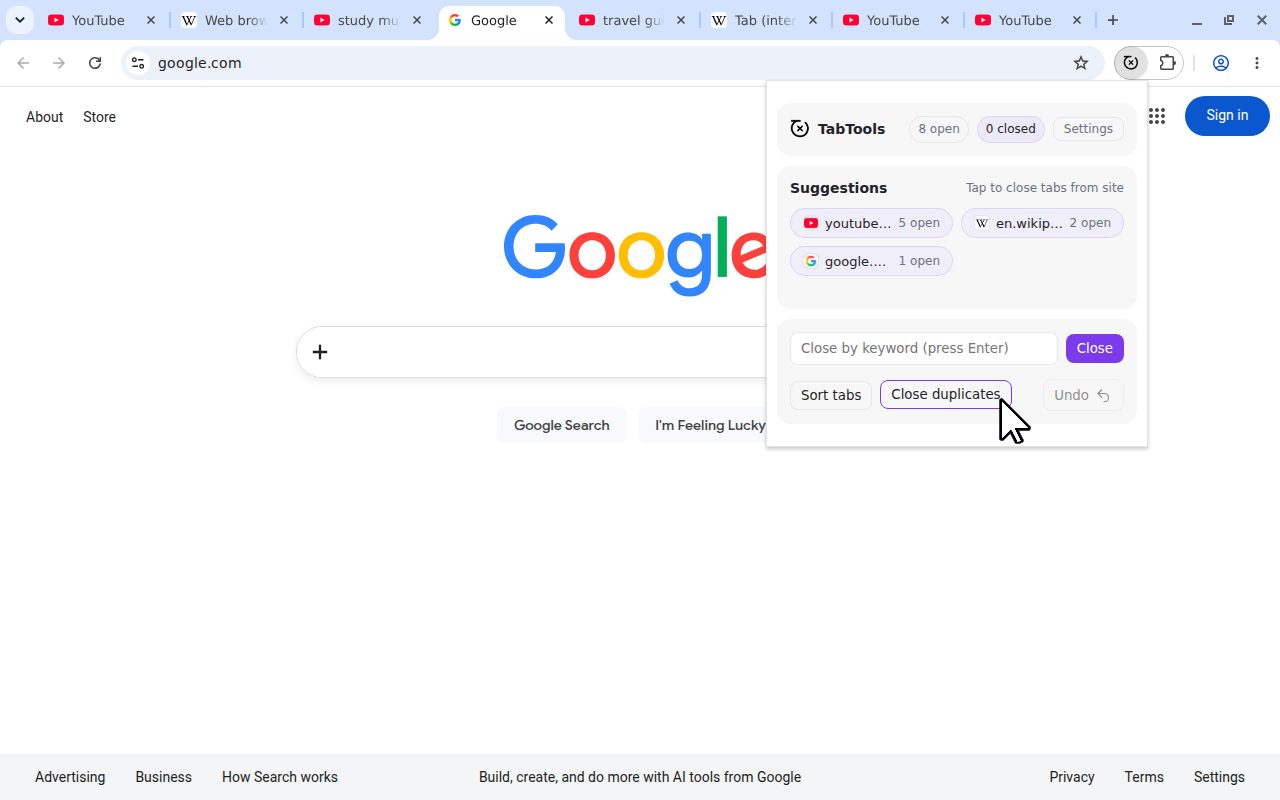
The TabTools popup uses the same command in both browsers. These screenshots show Chrome with eight tabs, including three copies of the YouTube homepage.
- Install TabTools for Chrome or Microsoft Edge.
- Open the extension from the toolbar or extensions menu.
 View full size (opens in a new tab)
Open TabTools from Chrome’s toolbar. - Click Close duplicates.
 View full size (opens in a new tab)
Click Close duplicates to remove repeated copies. - Check the popup’s status message. It reports how many duplicates closed, or No duplicates when none matched.
 View full size (opens in a new tab)
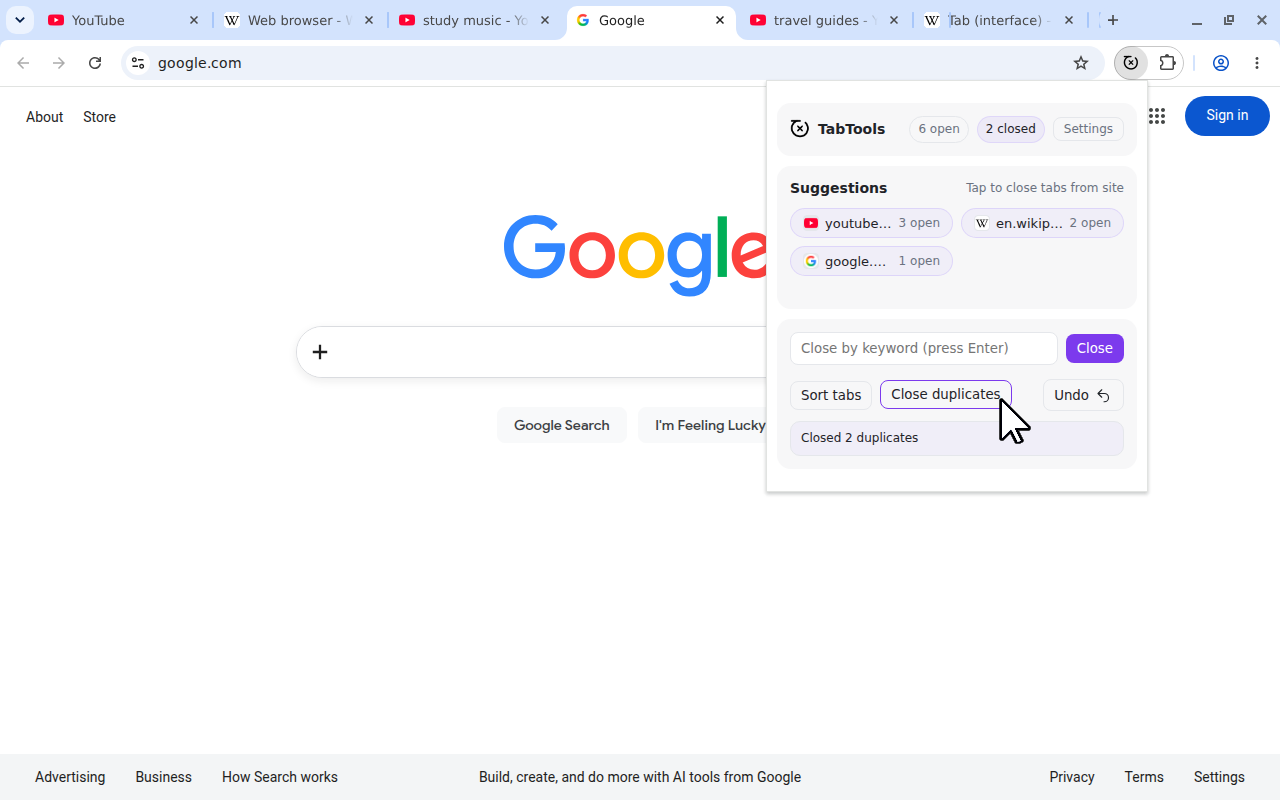
Two duplicate copies close, leaving six tabs. Keep the popup open if you want to use Undo.
You do not need to select the repeated tabs first. The cleanup covers normal windows within that browser, so two copies of a page can be matched even when they are in different windows. Private or incognito tabs are excluded.
Running the command in Chrome does not change Edge tabs, or vice versa. Use it separately in each browser if you have duplicates in both.
Use Firefox’s built-in duplicate commands
Firefox provides native options if duplicate removal is all you need.
- For copies of one page: right-click the tab you want to keep and choose Close Duplicate Tabs.
- For a broader cleanup: open List all tabs, then choose its duplicate-closing command, shown as Close all duplicate tabs or Close Duplicate Tabs depending on the interface.
Mozilla’s tab context menu guide explains the first option. Its tab overview menu guide describes the broader cleanup and says it keeps the last active tab among duplicates.
If you already use TabTools for Firefox, open its popup and click Close duplicates. Its matching and retention rules are the TabTools rules below; do not assume they are identical to Firefox’s native command.
Which copy does TabTools keep?
TabTools keeps the first unpinned copy encountered in the browser’s tab list and closes later matches. It does not deliberately choose the active tab, the newest tab or the tab you used most recently. A retained copy may therefore be in another window.
Pinned tabs are skipped completely. They are neither closed nor counted as the copy to keep. If a page has one pinned tab and two unpinned copies, the pinned tab remains and one of the unpinned copies remains too.
This makes pinning useful for keeping a page in place, but it means Close duplicates does not guarantee exactly one tab for every URL across pinned and unpinned tabs.
Undo a cleanup and organise what remains
Keep the popup open after cleanup if you want to check the result. Undo can reopen the tabs from the latest popup close action during that popup session. It reopens pages by URL; unsaved page content is not guaranteed to return. Once the popup is closed, use your browser’s recently closed tabs or history instead.
For different pages you have finished with, see how to close all tabs from the same website. For pages you want to keep, sorting tabs by website brings related tabs together without closing them.