

Quick answer
Open TabTools in the window you want to organise and click Sort tabs. It arranges unpinned tabs by website, putting sites with the most currently open tabs first. Pinned tabs stay in place.
Sort the tabs in your current window
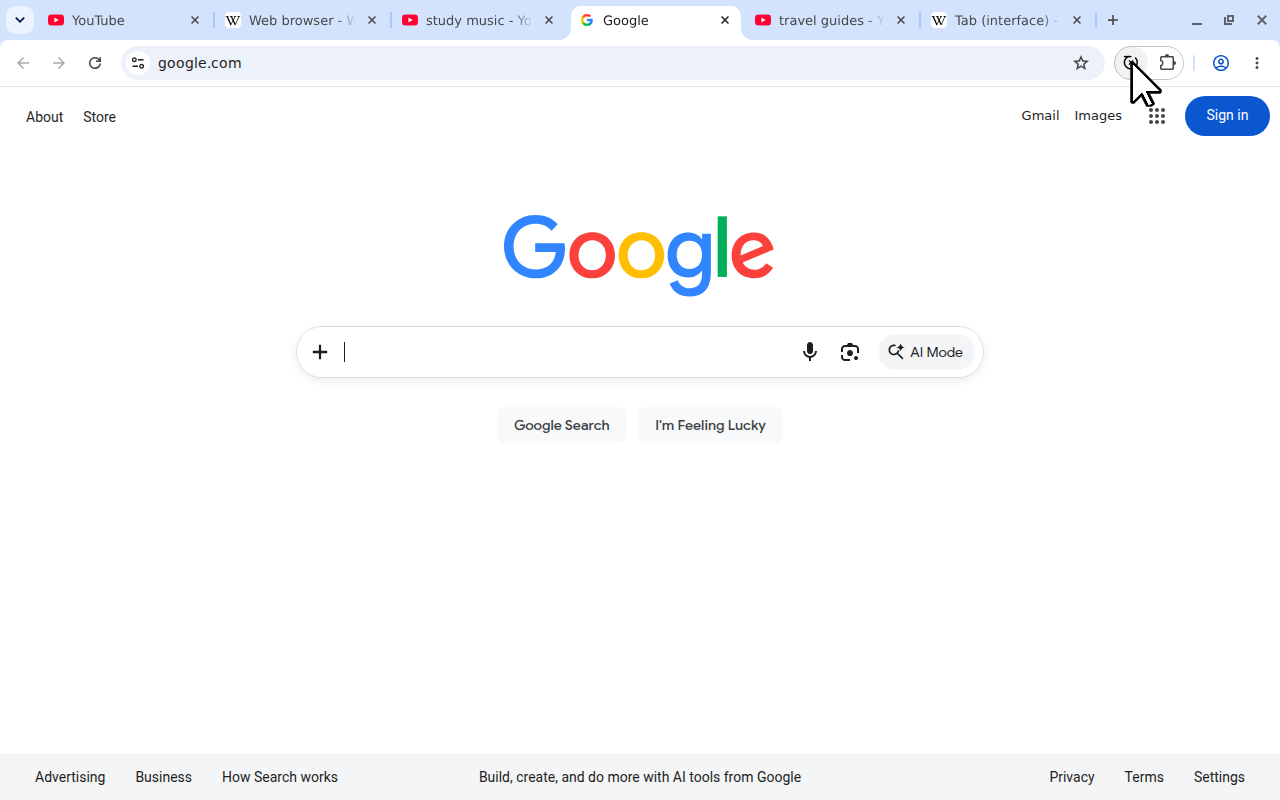
The same popup action is available in Chrome, Firefox and Microsoft Edge. This Chrome example starts with six tabs mixed between YouTube, Wikipedia and Google.
- Install TabTools for Chrome, Firefox or Edge.
- Switch to the browser window whose tabs you want to arrange.
 View full size (opens in a new tab)
Before sorting: six tabs from three websites are mixed together. - Open TabTools from the toolbar or extensions menu.
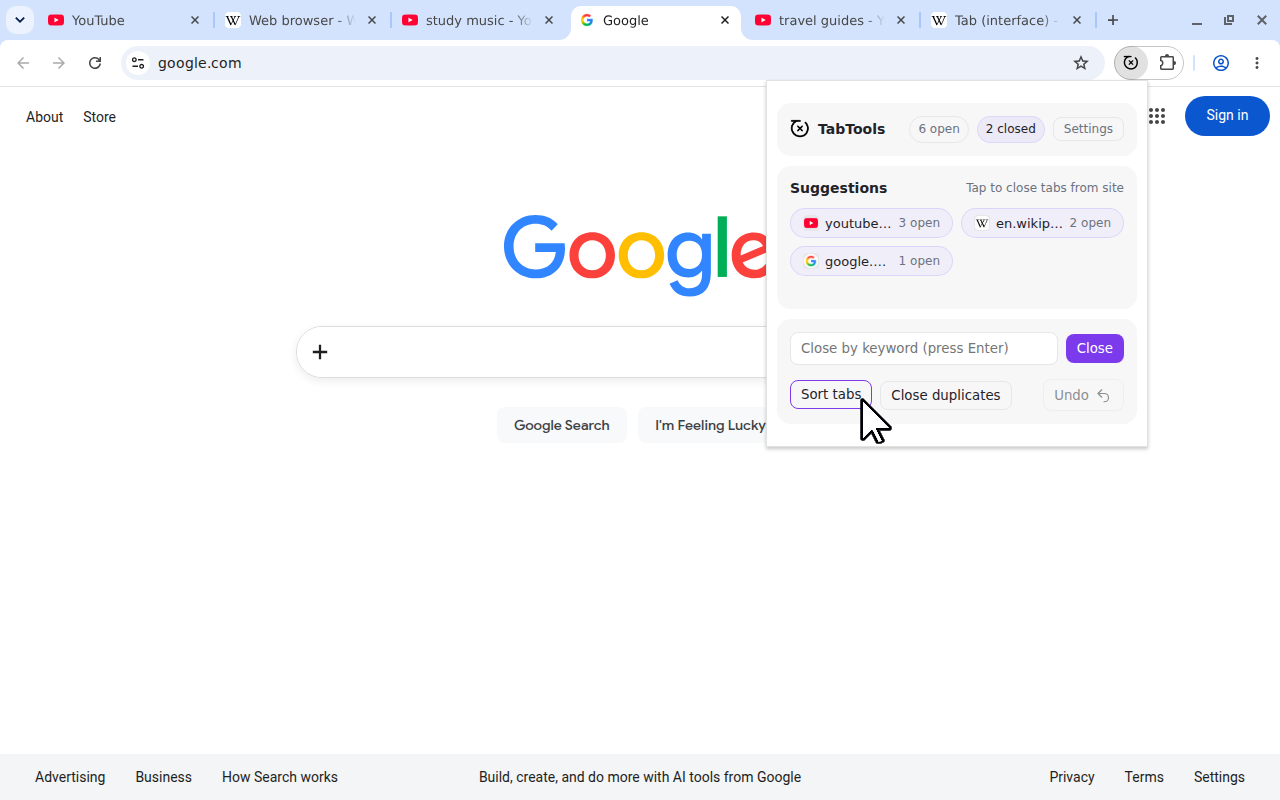
- Click Sort tabs.
 View full size (opens in a new tab)
Click Sort tabs to bring pages from each website together.
Related unpinned tabs move beside one another. Pages stay open, and tabs in other windows are not brought into this window. If you want to organise another window, switch to it and run the command again.
Sorting is a one-time action. New tabs open normally afterwards; TabTools does not continuously rearrange the tab bar as you browse. Click Sort tabs again when you want to tidy the current arrangement.
How TabTools chooses the order
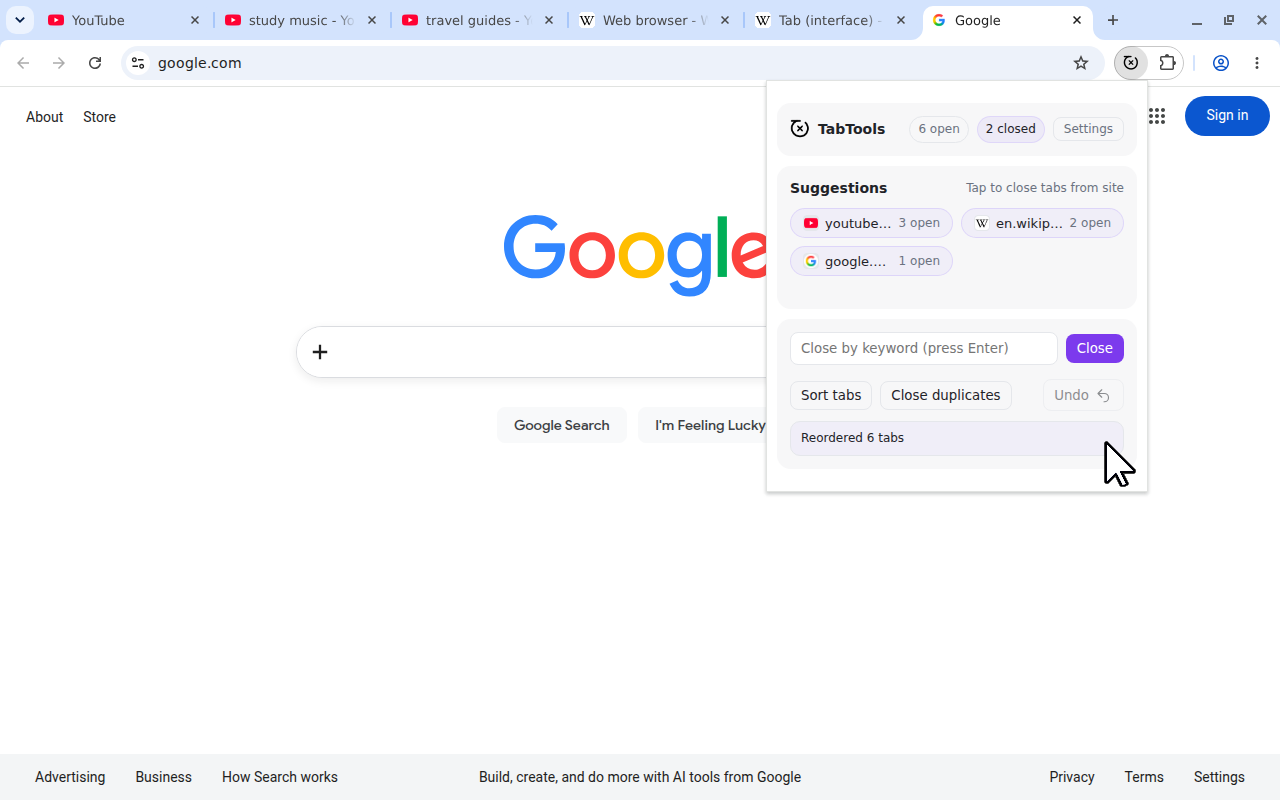
TabTools counts the open tabs for each website in the current window. Sites with larger counts come first, immediately after pinned tabs. Here is a simple example with no pinned tabs:
| Website | Open tabs | Position after sorting |
|---|---|---|
youtube.com | 3 | First |
en.wikipedia.org | 2 | Second |
google.com | 1 | Third |
 View full size (opens in a new tab)
“Most opened” means the largest number of tabs open right now. It does not mean your most visited website, browsing history or the number of times you have opened a site over the past week.
If two sites have the same count, their hostnames determine the order alphabetically. Tabs from the same hostname keep their relative order. For example, the three YouTube pages retain their order within the YouTube set; they are not sorted by page title.
Pinned tabs and subdomains
Pinned tabs stay in their pinned positions. They still contribute to a website’s count when TabTools decides the order of its unpinned tabs.
For example, two pinned GitHub tabs and two unpinned GitHub tabs give GitHub a count of four. Its unpinned tabs therefore come ahead of a website with three open tabs, while the two pinned GitHub tabs remain where they are.
Website matching uses the hostname and ignores a leading www.. Pages on example.com and www.example.com belong together. Pages on docs.example.com form a separate set from shop.example.com.
This is useful when different services share a parent domain: documentation and a shop can remain separate in the sorted tab bar.
Choose between sorting and tab groups
Sorting is useful when the website itself is the organising rule. Browser tab groups are useful when your organising rule is a task, such as a holiday, a work project or a purchase that involves several websites.
| Your goal | A suitable option |
|---|---|
| Put pages from each website beside one another | TabTools Sort tabs |
| Choose the exact order of a few tabs | Drag tabs manually |
| Keep a project’s different websites together under a name | Your browser’s named tab groups |
TabTools rearranges tabs; it does not create named or coloured browser groups. If you have deliberately arranged tabs by project, consider whether sorting by website suits that window before changing the order.
Organise tabs without an extension
Chrome
Drag tabs along the tab bar to set their order manually. You can also use named tab groups when related work spans several websites. Google’s Chrome tabs guide covers arranging and grouping tabs.
Firefox
Use the tab bar to move individual tabs, or use the grouping options in Firefox’s tab context menu for a named collection. Mozilla’s tab context menu guide describes the available tab actions.
Microsoft Edge
Edge offers named tab groups and an Organize tabs feature that can group related tabs. Availability can vary. These organise by your chosen groups or relevance, which differs from sorting by current website counts. Microsoft explains them in its Edge tab groups guide.
What to do after sorting
TabTools has no undo action for sorting. The popup’s Undo button is for its latest tab-closing action, not the previous tab order. If you want a different arrangement after sorting, drag the tabs into place.
Sorting also keeps repeated copies of pages. If that makes the largest sets unnecessarily long, close duplicate tabs and sort again using the remaining counts.
When you finish with an entire website, use Close site tabs to remove its pages. Sorting is the option for the tabs you still need: it makes them easier to find without deciding which pages to close.